
Appearance
Highlighting properties with Featured Listings
Not every page needs a full, browsable property list. Often you just want to draw attention to a small selection — for example on your homepage, a landing page, or a category overview.
The Featured Listings widget is made for that. It shows a compact row or grid of property cards (up to 24) without search bars, sort controls, or pagination for visitors. You decide how many listings appear, how they are sorted, and optionally which category they belong to.
Typical use cases:
- Homepage spotlight — show the four most recently added properties so new visitors immediately see what is on offer.
- Category highlight — on a “Houses” landing page, show only houses for sale while linking through to your full listings page for browsing.
- Curated selection — combine a category filter with a sort order (e.g. highest price first) to feature premium listings in a sidebar or hero section.
The approach is similar to creating category-based listings pages: you add the widget to a page and use its settings to control which properties appear. The difference is the widget itself — choose Featured Listings, not Listings Page.
Featured Listings vs Listings Page
Featured Listings Listings Page Purpose Highlight a small selection Full, browsable catalog Visitor controls None (no filters or pagination) Search, filters, pagination Typical placement Homepage, landing pages, sidebars Dedicated listings pages Settings Count, sort order, optional category filter Category filter, visitor filters, layout Use Featured Listings when you want a snapshot. Use Listings Page when visitors should browse everything. See Creating multiple listings pages based on categories for the latter.
Decide what to show
Before you add the widget, think about what you want visitors to see:
- How many listings? The widget can show between 1 and 24 properties. Four is a common choice for a homepage row.
- Sort order — which properties fill those slots when more match your criteria than the count allows?
- Newest–oldest — most recently added first (good for a “latest listings” block).
- Oldest–newest — longest-listed properties first.
- Price low–high or Price high–low — useful when price is the main signal.
- Category filter (optional) — restrict the pool to specific values, the same way you would on a category listings page. For example, only Apartment or only Sale. Leave all filters unchecked to draw from your entire catalog.
As you manage your properties, each listing’s field values determine whether it qualifies for a given widget.
Prefer to watch?
The video below walks through adding the Featured Listings widget and configuring it — the same steps described below, in video form.
Add the Featured Listings widget
You can place this widget on any page: your homepage, a custom landing page, or alongside other content.
Open the Wix Editor.
Open the page where you want the featured properties to appear (e.g. your homepage).
Click the + (Add Elements) icon in the top-left toolbar (1). Click App Widgets (2), then drag Featured Listings onto an empty section on your page (3).
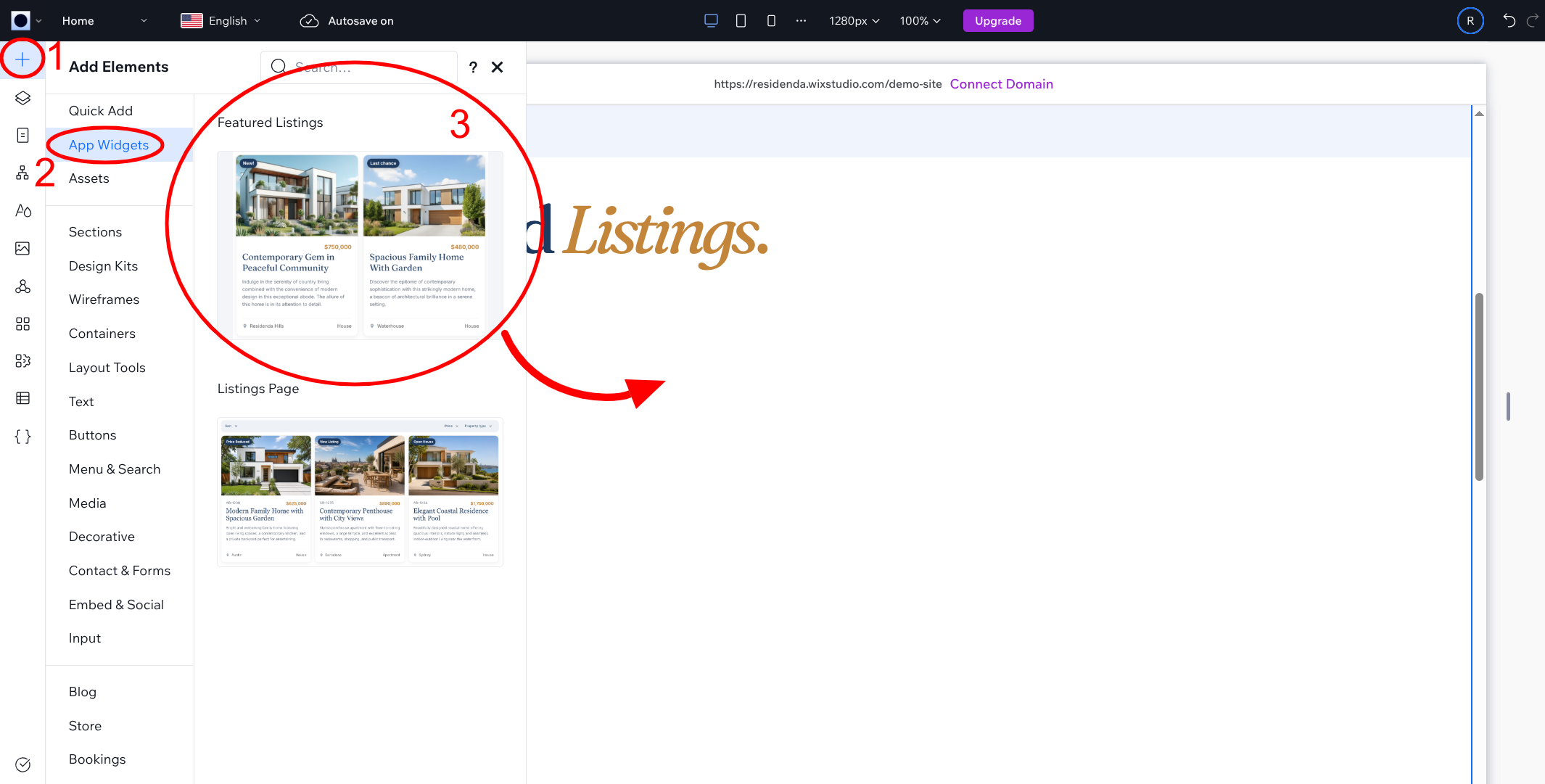
Make sure you choose Featured Listings and not Listings Page. The Listings Page widget is for full catalog pages with browsing and filters.
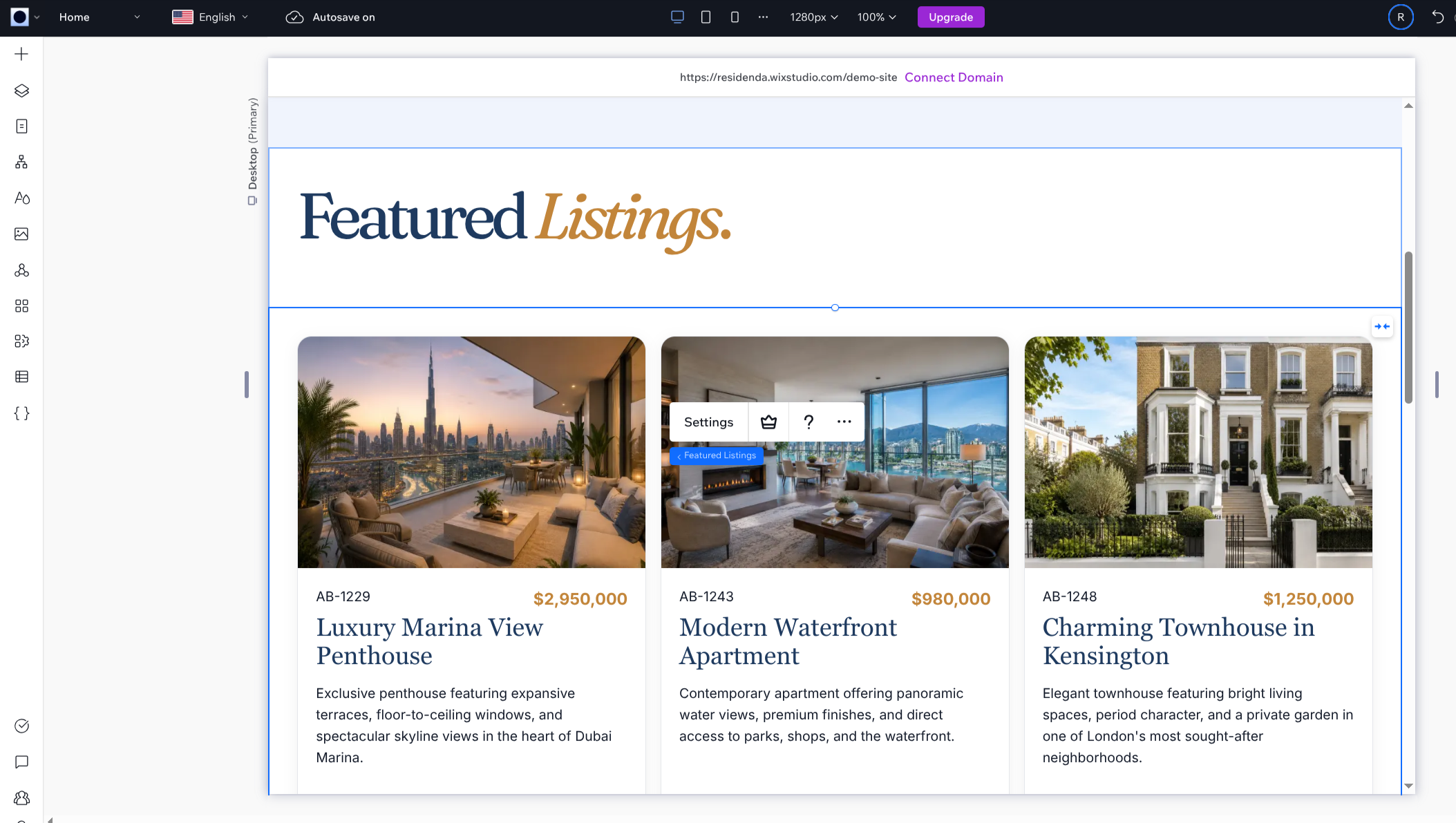
The widget appears on your page and shows your properties. At this point it uses the default settings — in the next section you will fine-tune the selection.
Configure which listings appear
Open the widget settings to control the selection and layout.
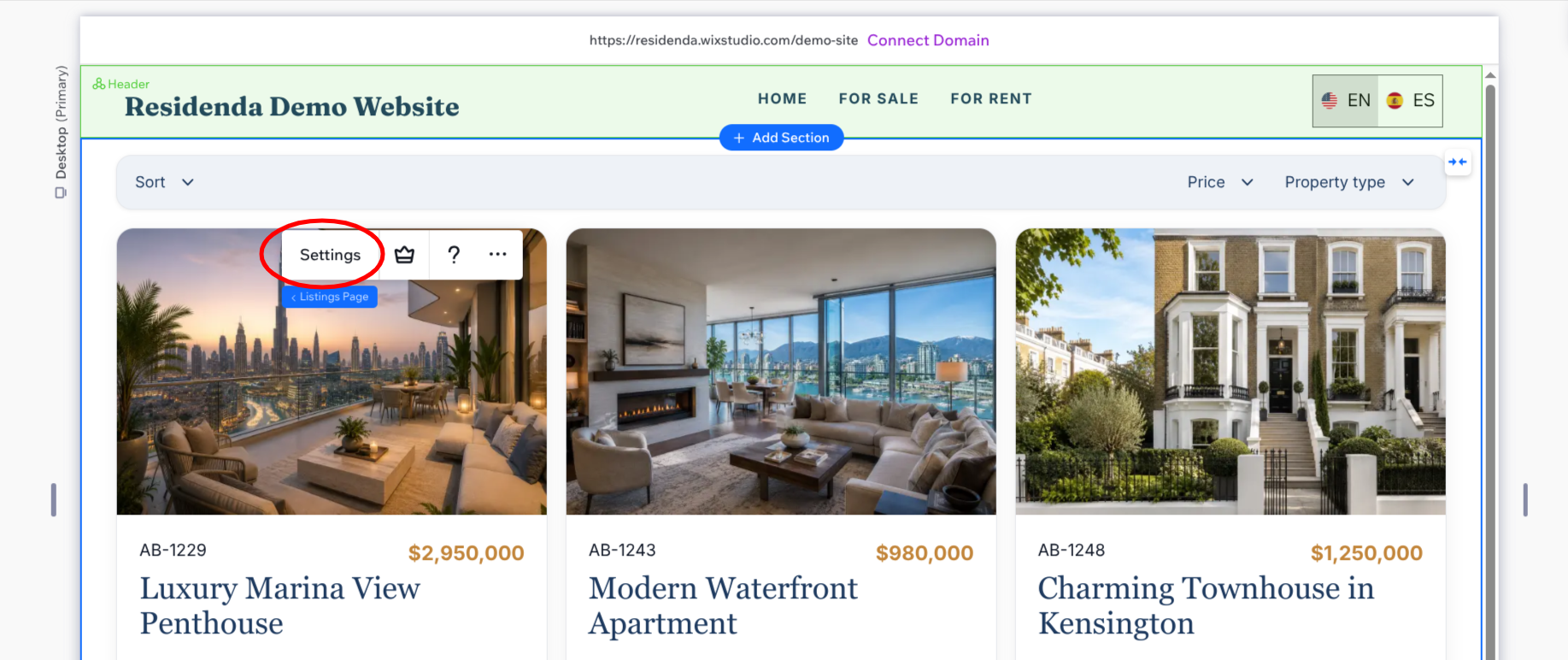
- Double-click the Residenda block to open its settings. Alternatively, click the block once and then click the Settings button that appears.
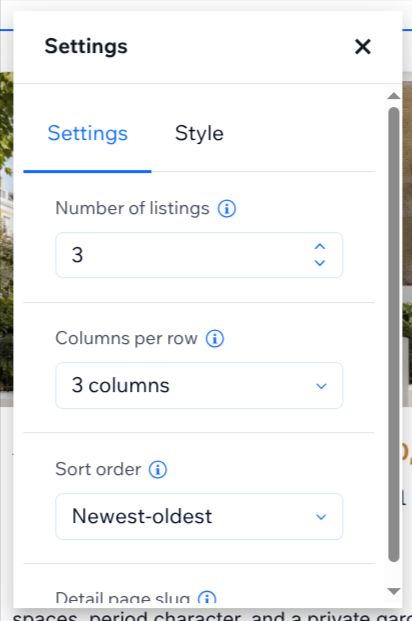
- In the Settings tab, set Number of listings to how many cards you want to show (1–24).
- Set Columns per row to control the grid layout. On narrow screens, fewer columns are shown automatically.
- Choose a Sort order. This determines which listings are picked when more properties match your criteria than the number above.
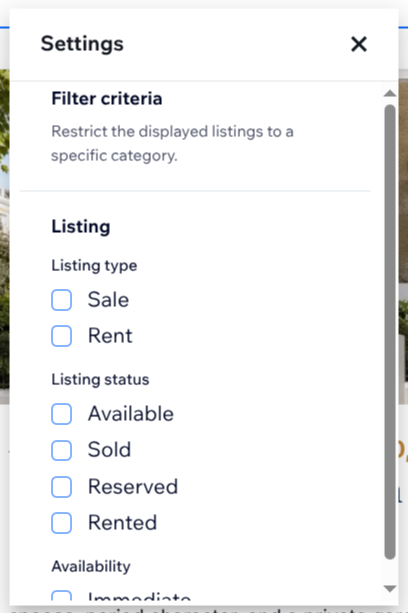
- Under Filter criteria, optionally restrict which properties are eligible — same fields and values as on a category listings page. Scroll through the list, find the field you want (e.g. Property type or Listing type), and check the value(s) to include (e.g. Apartment or Sale). You can combine values from more than one field.
- Set Detail page slug to the URL slug of your main listings overview page (e.g.
listingsorproperties). When a visitor clicks a featured card, they are taken to that property’s detail page under this slug. It must match the page where your Listings Page widget lives. - Your changes are saved automatically and are reflected on your live site. Click the X in the top right corner of the settings panel to close it.
Customize the look (optional)
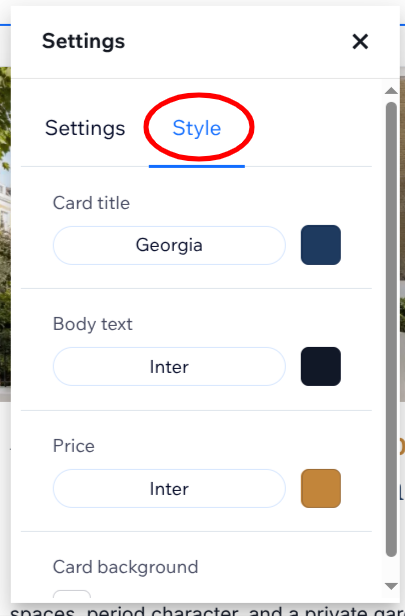
Switch to the Style tab in the settings panel to adjust fonts and colors for card titles, body text, prices, ribbons, and backgrounds. These settings apply only to this widget instance, so you can style a homepage block differently from your main listings page.
Add more featured blocks
You can add multiple Featured Listings widgets on the same site — even on the same page — each with its own count, sort order, filters, and styling. For example, one block for the four newest rentals and another for three highlighted houses, stacked on your homepage.
Each widget is independent: changing one does not affect the others.